
Test Case (QA)
Available, growingWrite test cases, run them, file bugs and hand them to your backlog, with CI results and GitHub checks.
Who it is for
Built for QA engineers, test leads and the developers who fix what they find. Testers write and run cases and report bugs. Leads plan releases and check readiness. Developers get approved bugs on their backlog or as GitHub Issues.
What you can do today
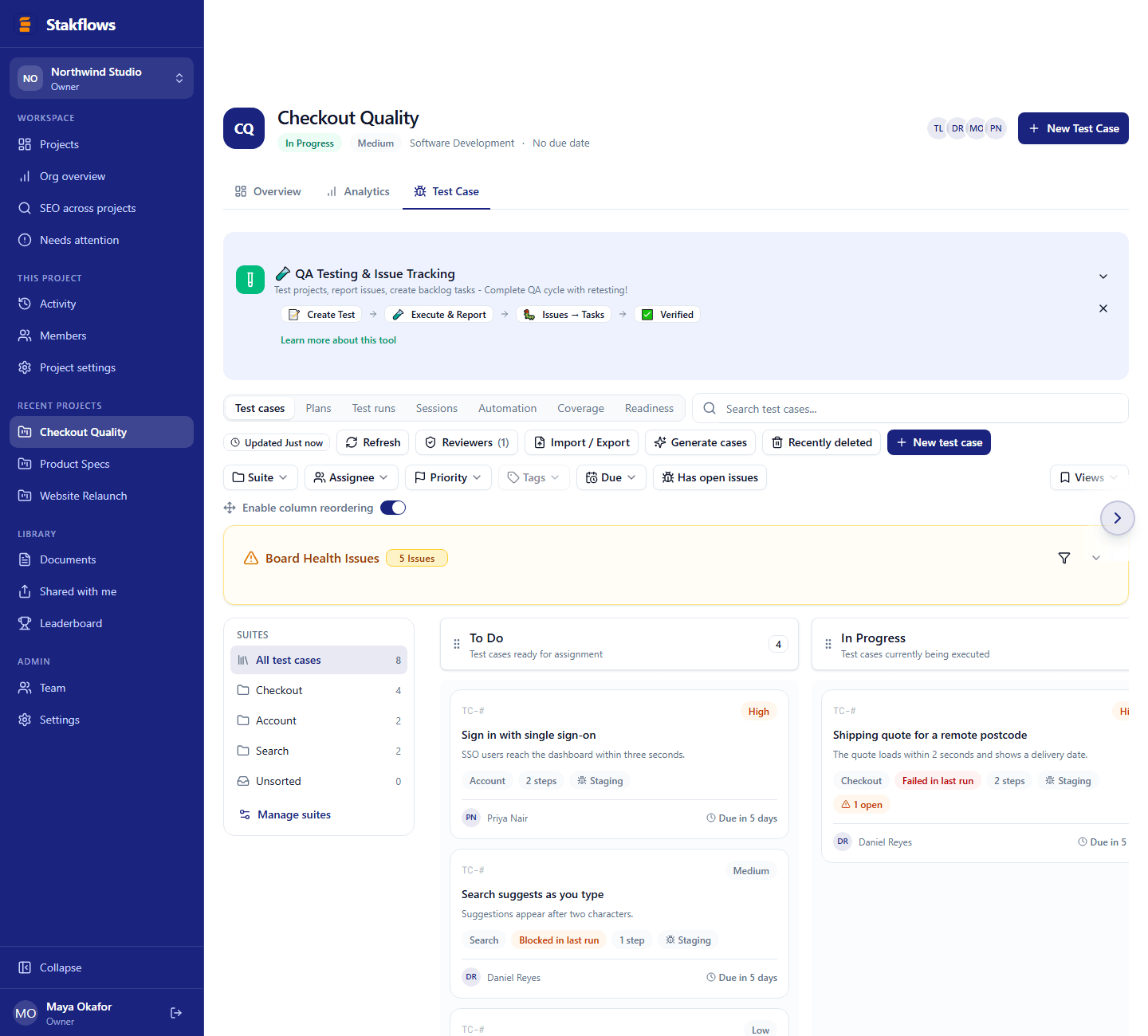
Test cases with steps and suites
Write each case with steps, expected results and preconditions, and group cases into suites. Filter the board by suite, assignee, priority and tags, or find the cases that have open issues.
Plans and runs
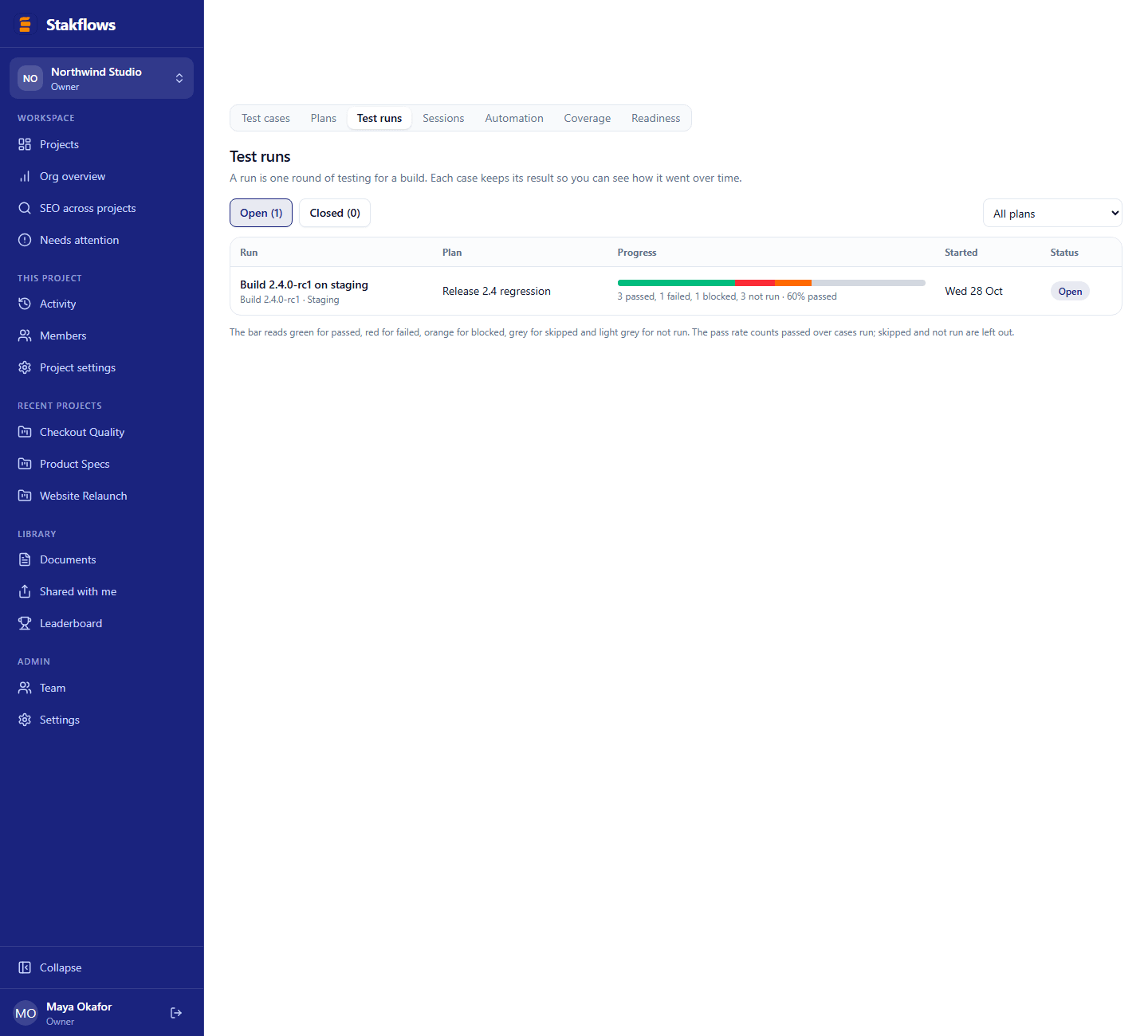
Group cases into a test plan for a release, run them and mark each one passed, failed, blocked or skipped. See progress by plan and the pass rate of each run.
Bugs and test reports
Report a bug with steps to reproduce, severity and environment. Testers submit a test report for review, and a reviewer approves it before the work moves on.
Hand approved bugs to your backlog
Send an approved bug to the Task Board as a card, or open it as a GitHub Issue instead.
Requirement coverage
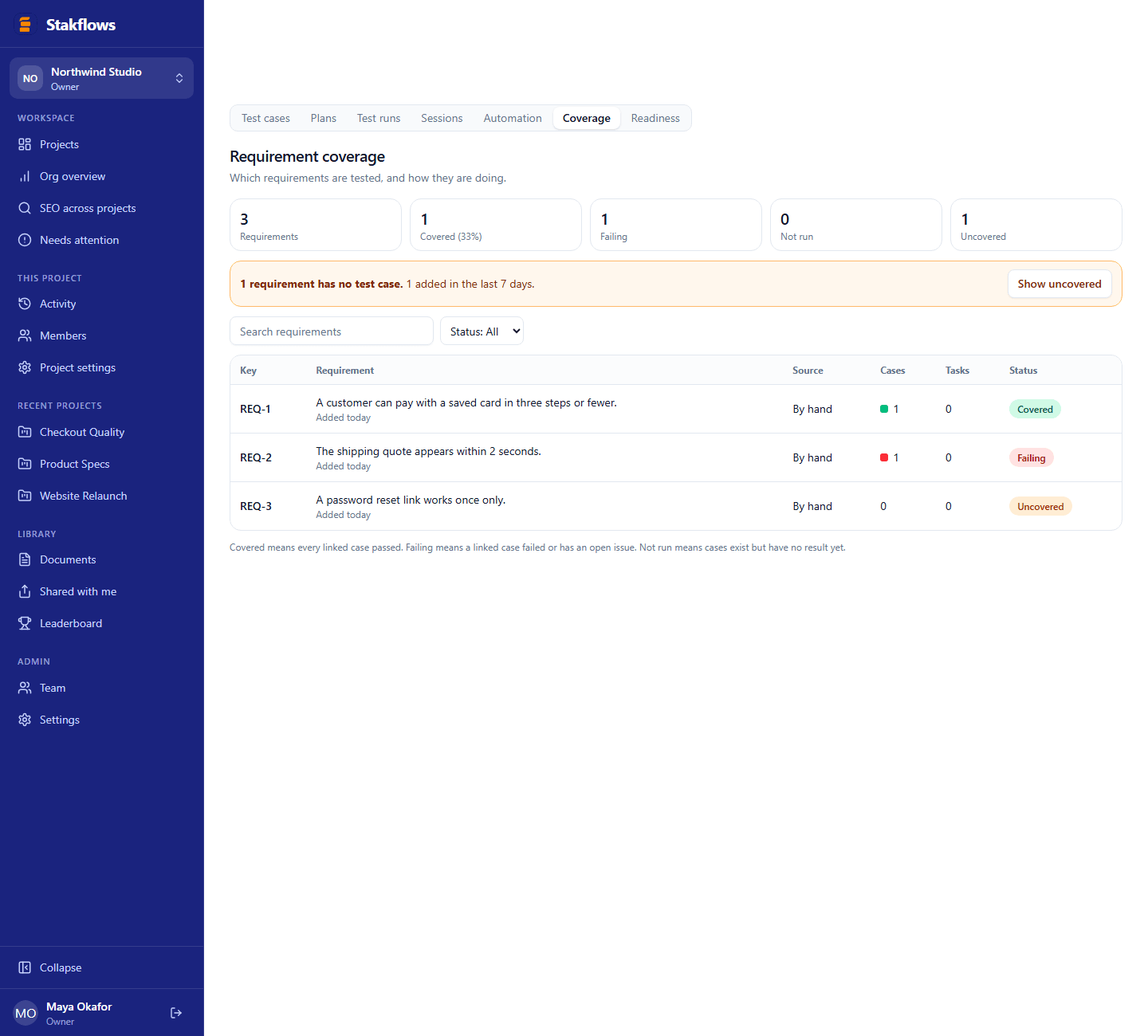
Link requirements to test cases and see which ones are tested, which are failing and which have no test yet.
Release readiness
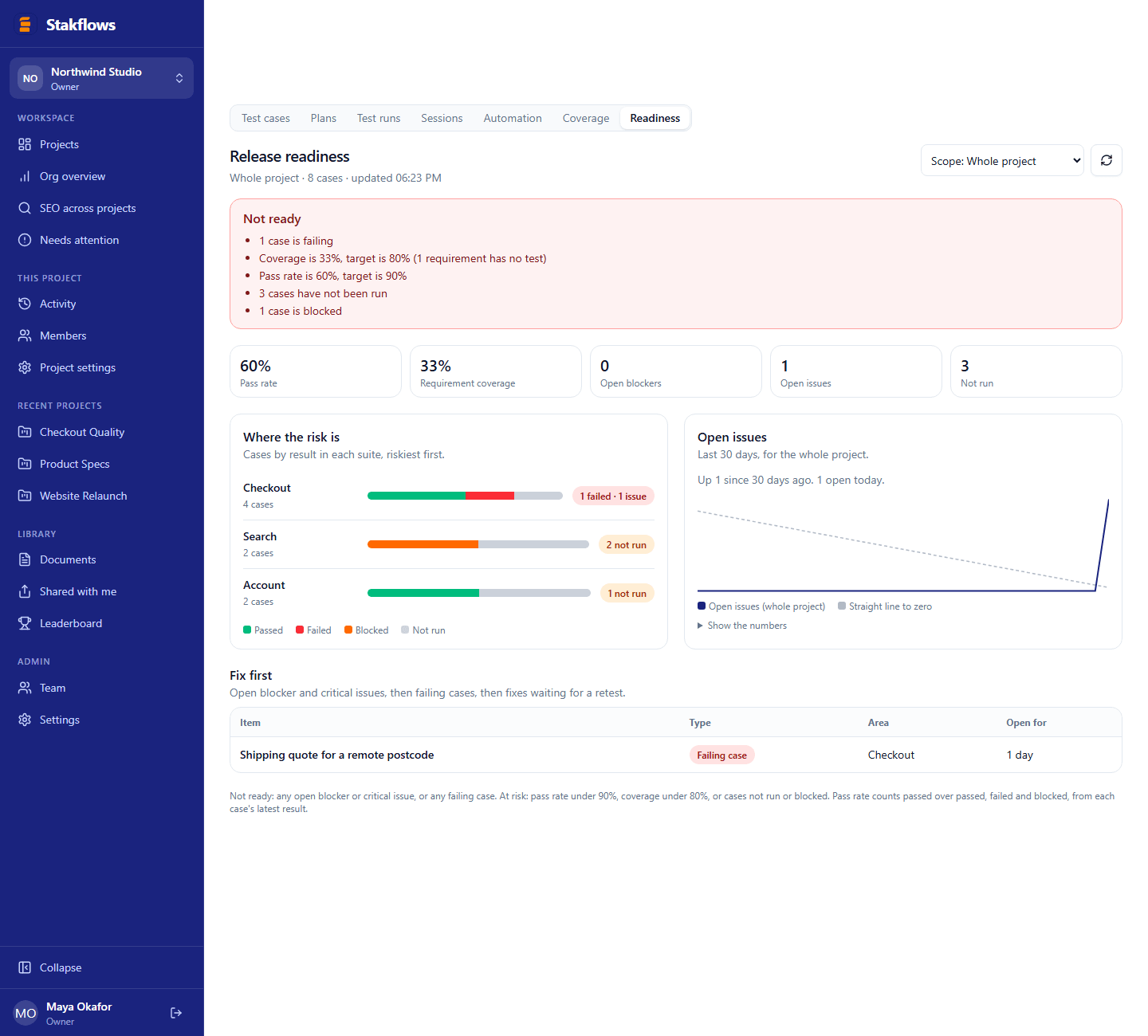
See whether a release is ready: pass rate and requirement coverage against your targets, open blockers, and where the risk is, suite by suite.
CI results, GitHub checks and webhooks
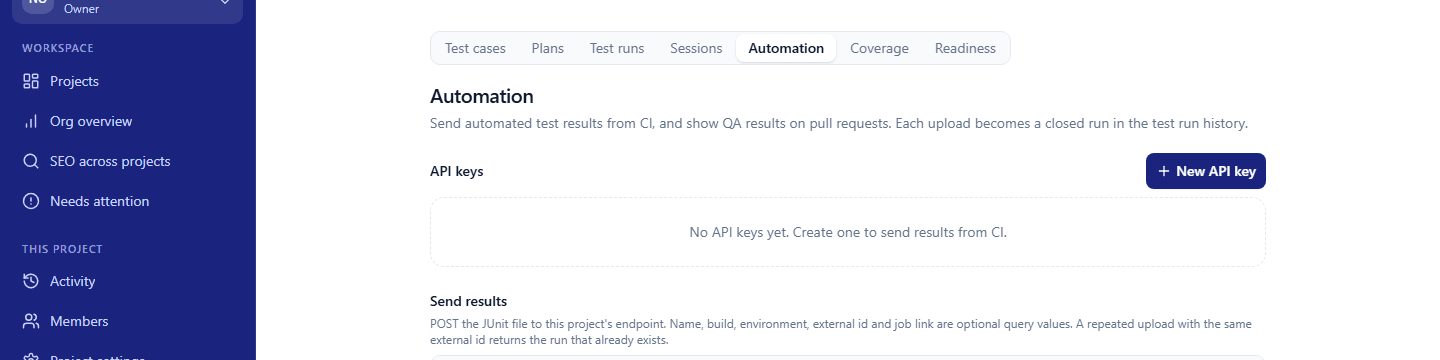
Send automated results from CI as JUnit files with an API key, and see QA status on GitHub pull requests. Signed webhooks send QA events to your own systems.
How it works
- 1Write cases and group themWrite cases by hand or draft them with AI, then group them into suites and plans for a release.
- 2Run and record resultsRun the cases by hand, or send results from CI. Each case keeps its result so you can see how it went over time.
- 3Report and review bugsReport bugs with steps and severity. A reviewer approves the report.
- 4Hand off and check readinessSend approved bugs to the Task Board or GitHub, then use coverage and readiness to decide whether to ship.
AI in this tool
AI is available on plans with AI access (Pro and above). You review everything it drafts.
- Generate test cases from a document, a requirement or a board task, with steps and expected results.
- Draft a bug report from a screenshot or recording and one line.
- Triage: suggest severity and priority, and point out likely duplicates.
- Analyse a failed run: group the failures and suggest likely causes.
- Review case wording: flag vague steps and missing expected results, with a score.
AI does not run your tests, approve or close issues, or change your code. Each AI action uses credits from your organization's shared monthly pool.
What is coming
- Two-way Jira and Linear sync: Keep bugs and their status in step with Jira and Linear. Planned; not built yet.
Works with
Plans
- Test Case (QA): available from the Free plan
Test cases, plans, runs, bug reports and the backlog hand-off are part of the Free plan. AI features need a plan with AI access (Pro and above) and use your organization's AI credits.
Questions
Which plans include the Test Case tool?
Test cases, plans, runs, bug reports and the backlog hand-off start on the Free plan. AI features need a plan with AI access, which is Pro and above.
How does the backlog hand-off work?
When a bug is approved you choose where it goes: a card on your Task Board, or a GitHub Issue. Only approved bugs are handed over.
Can I send results from CI?
Yes. Create an API key in the Automation tab and post a JUnit XML file to your project's results endpoint. Results are matched to your cases by automation id, then by exact title. Results that match no case are listed on the run; they never create cases.
How do AI credits work here?
Each AI action uses credits from your organization's shared monthly pool. The AI Assistant page explains how credits work.
What is not built yet?
Two-way sync with Jira and Linear. Everything else on this page is available today.