
AI Creative Suite
Available, growingBrand-safe pictures for marketing: made on brand, edited properly, with your exact text and logo, and kept in a project library.
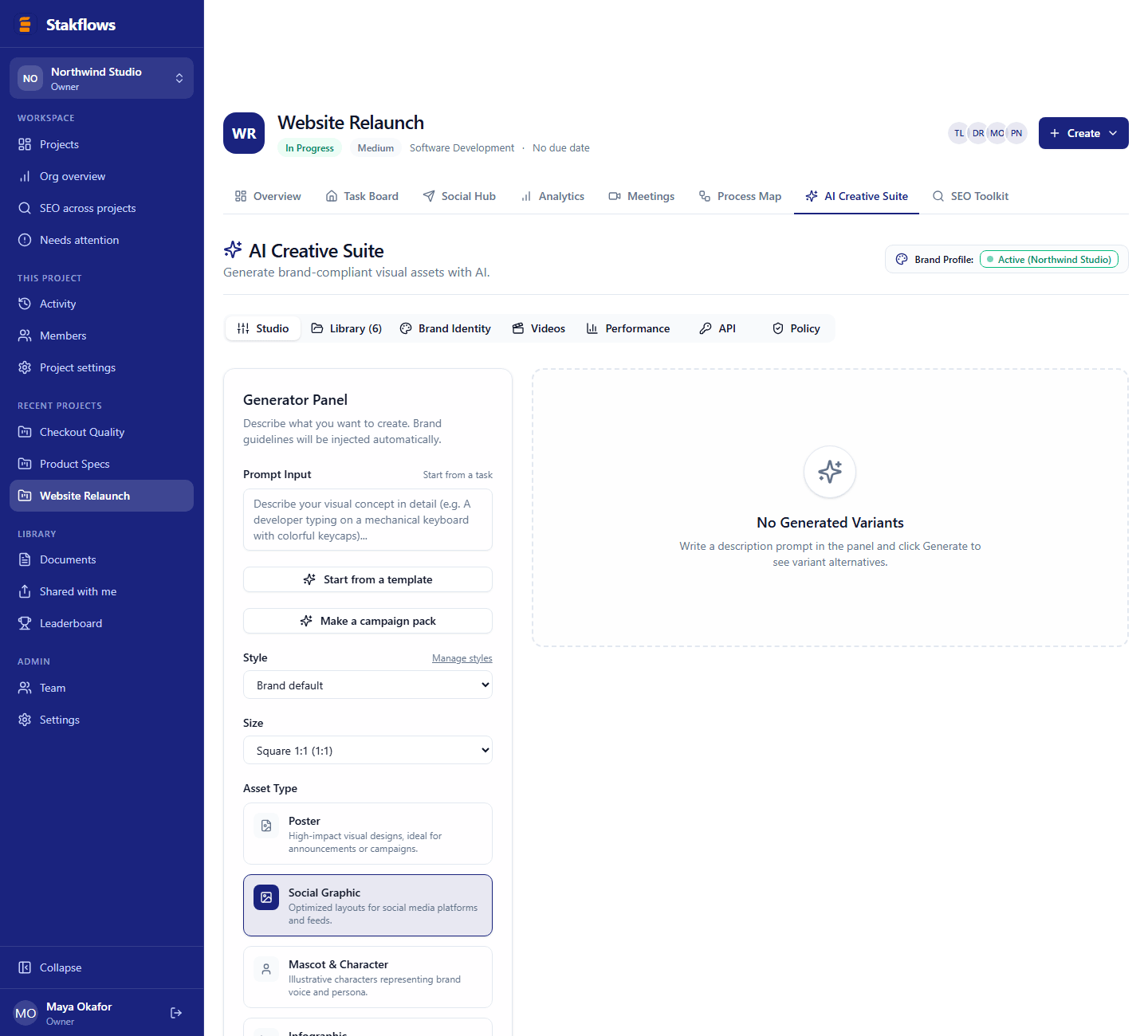
Who it is for
Built for marketers, designers, social managers and agencies who need pictures that match the brand without starting from a blank canvas each time.
What you can do today
Pictures that follow your brand
Describe what you want and the Studio makes pictures using your organization's brand: colours, tone, logo and sample images. Choose a poster, a social graphic, a mascot or an infographic.
The right shape for each channel
Pick a ratio or a channel preset, such as an Instagram feed post, an Instagram story or a Facebook post, so the picture fits where it will be used.
See the price first
The price is shown before you click, pictures appear as they are ready, and a picture that fails is not charged. A picture is charged only when it arrives.
Edit a picture properly
Describe a change, paint over just the part you want changed, remove an object or a background, extend a picture to a new shape, or make a larger copy for print.
Exact text and your real logo
Add your exact words and your real logo to a picture, drawn so they stay legible. Text uses your brand's own fonts if you have uploaded them, and a standard font if not.
Styles, templates and campaign packs
Save a style for consistent campaigns, start from a template for a finished post, or make a campaign pack with a set of matching pictures.
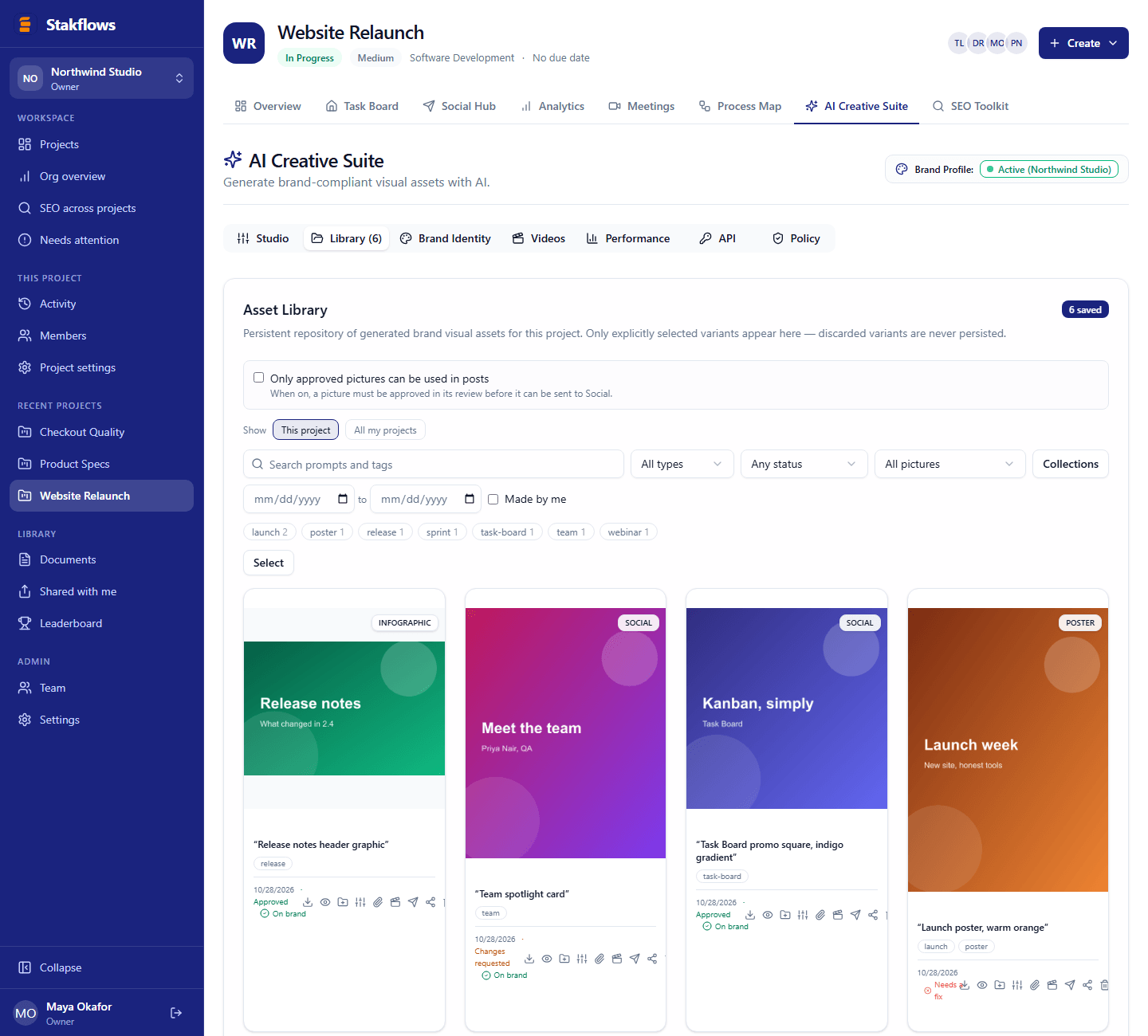
Brand checks, review and the library
Every picture is checked for brand colours, resolution, text contrast, logo size, words to avoid and people in the picture. Keep pictures in a project library with tags and collections. The screenshot uses sample pictures.
Approval, sharing and short video
Reviewers approve pictures with comments pinned to the picture. Send a picture to a Social post, a document or a task, or share a link. Turn a saved picture into a short video.
How it works
- 1Set up your brandAdd your colours, tone, logo and sample images once, so every picture starts from them.
- 2Describe and generateDescribe the picture, pick a style and a shape, and see the price before you start.
- 3Edit and finishChange part of the picture, add your exact text and logo, and check it against your brand.
- 4Approve and useGet it approved, then send it to a post, a document or a task, or share it.
AI in this tool
AI makes pictures from your description and edits them: changing a part, removing an object or a background, and extending a picture. It can also write a caption and suggested tags for a saved picture. It needs a plan with AI access (Pro and above).
AI does not publish or approve a picture. People review each one, and your brand checks run on every picture. Making a picture is the most expensive AI action and uses your organization's shared monthly AI credits.
What is coming
- Longer videos and video ads: A video made of several scenes, with captions, an end card, voiceover and music. Not available yet.
- Sending a video to a Social post: Not available yet.
- Content credentials in exported files: Signed C2PA credentials on exported pictures. Not available yet.
- Vectors drawn directly, and layered files: SVG is made by tracing a picture today. A model that draws vectors directly and a layered PSD file are not available yet.
Works with
Plans
- AI Creative Suite: available from the Pro plan
Making and editing pictures needs a plan with AI access (Pro and above) and uses your organization's AI credits. Upscaling, adding text and a logo, SVG, export and sharing are free.
Questions
How do credits work?
Making and editing use AI credits from your organization's shared pool, and the price is shown before you click. Making pictures is the most expensive AI action. A failed picture is not charged, and a picture is charged only when it arrives. The AI Assistant page explains credits.
What can I export?
PNG, JPG, WebP, a PDF for print, SVG, or a ZIP of layers for pictures made with text and a logo.
Is the SVG drawn by AI?
No. SVG is made by tracing the picture, so it works best for flat logos, icons and mascots. A photograph comes out posterized.
Can I use my own fonts?
Yes. Upload font files in your brand settings. Without them, text uses a standard font with Latin letters only.
Can I send a picture to a post?
Yes. Send an approved picture straight into a Social Hub post, or attach it to a task or a document. You can also require that only approved pictures are used in posts.